
Remove the location in Photos
- Open the photo in Photos.
- Swipe up or tap the info button.
- Tap Adjust beside the map, then No Location.
This changes the location associated with that item in your library. It does not remove other camera metadata. An export of the unmodified original can still carry the original metadata.
These steps apply to iOS 15 and later. Menus differ by device and version.
Hide location when sharing or stop recording it
To keep the location in your library but leave it out of a shared copy, use the sharing options in Photos.
- Select the photo in Photos and open the share sheet.
- Tap Options at the top.
- Switch Location off before sharing. You will also see an All Photos Data option.
The Location switch controls the copy being shared. It does not remove the location from the library original or promise to remove other metadata. Check these options when sharing again.
To stop new camera photos from recording a location, go to Settings > Privacy & Security > Location Services > Camera and choose Never. This does not remove locations from photos you already have.
Remove location from several photos
Photos lets you select several items and adjust their location together. Select the photos you want to change, use the location adjustment action, and choose No Location. The placement of this action differs by version.
If you want to remove location from all photos on your iPhone, the change applies to the items you select. It does not stop future photos from recording location or change copies you have already sent.
MetaQuiet works on one file at a time and does not offer batch cleaning.
Create and check a separate clean copy
Use MetaQuiet when you also want to inspect and remove supported descriptive metadata, including camera fields. Files are processed on the device, with no account or uploads.
- Open MetaQuiet and choose Photos & videos, or Browse Files for a photo saved in Files.
- Select a photo and review the supported metadata blocks and readable fields found. On iPhone, location and camera fields appear when they exist in the photo supplied by the picker.
- Clean the photo. MetaQuiet creates a separate copy with a random file name and leaves the original unchanged.
- Review the rescan on the result screen, including what was removed and what stays. Save the copy to your photo library or Files, or share it from that screen.
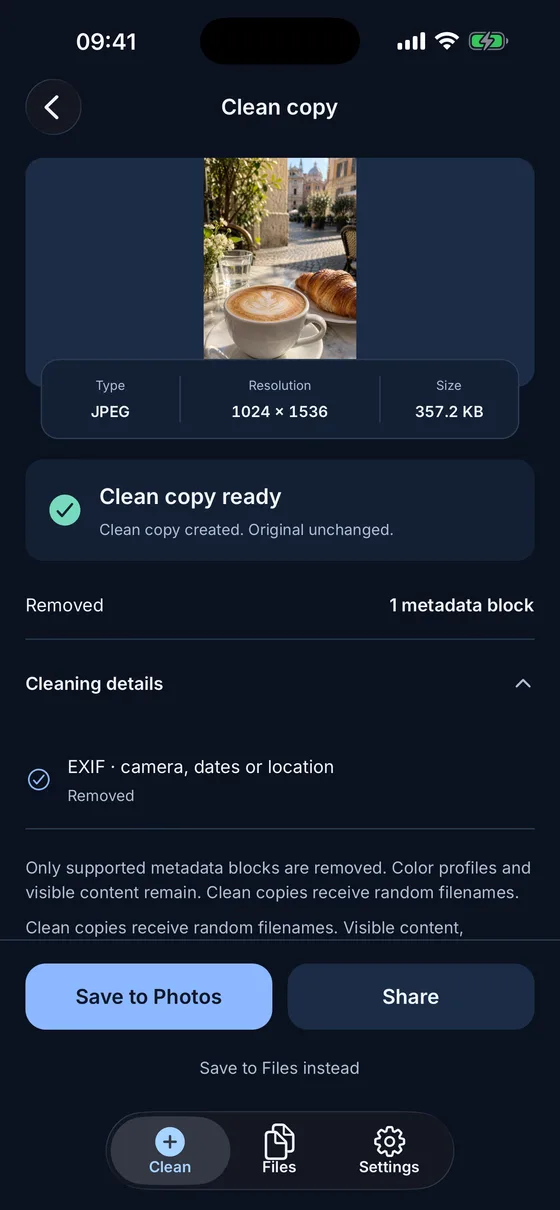
MetaQuiet removes supported descriptive EXIF, XMP, comments and text blocks. The visible picture stays, including faces, street signs and other clues to where it was taken. A minimal technical EXIF record preserves display orientation.
Photos must be no larger than 50 MB. HEIC support is for still images only; RAW and BigTIFF are rejected. A JPEG motion photo loses its motion part. MetaQuiet removes supported metadata; it does not edit locations or redact the picture.
Common questions
Does No Location remove all metadata from an iPhone photo?
No. It changes the library item's location, but camera fields and other metadata can remain. An export of the unmodified original may still include its original location.
Can I remove location from all photos at once?
Photos supports adjusting location for several selected items together. The change covers your selection, so check which items are selected. MetaQuiet cleans one file at a time.
Will switching Camera location to Never fix older photos?
No. It stops new camera photos from recording a location. Remove location from existing photos separately.
Can someone still recognize where a clean photo was taken?
Yes. Removing location metadata does not hide landmarks, signs, addresses or other details visible in the picture.
MetaQuiet is on the App Store for iPhone and iPad and on Google Play for Android.
Get MetaQuietThis guide in other languages: Deutsch, Español, Français, Italiano, Português (Brasil), Türkçe, 日本語, 한국어