
Open the photo's information panel
- Open a photo in Photos.
- Swipe up or tap the info button.
- Look for camera, lens, exposure and file size information, plus a map when a location exists.
The information panel is available in iOS 15 and later. Menus differ by device and version.
Understand what the panel tells you
Photo metadata is information stored alongside the picture, such as the camera used, capture settings, dates or location. It is separate from details visible in the image itself.
Photos gives you a readable summary, not a complete inventory of every metadata block or field in the file. An absent field in this panel is not proof that the file contains no metadata.
For a closer look, MetaQuiet lists the supported metadata blocks and readable fields it finds. Depending on the file, these can include location, camera, lens, dates, software, descriptions and orientation. Its inspection is limited to supported metadata.
Inspect supported fields without cleaning
- Open MetaQuiet and choose Photos & videos. Use Browse Files instead if the photo is saved in Files.
- Select one photo. On iPhone, the photo picker supplies metadata, so location and camera fields show when they exist.
- Read the inspection result and the available field details. You can stop here without cleaning or saving a copy.
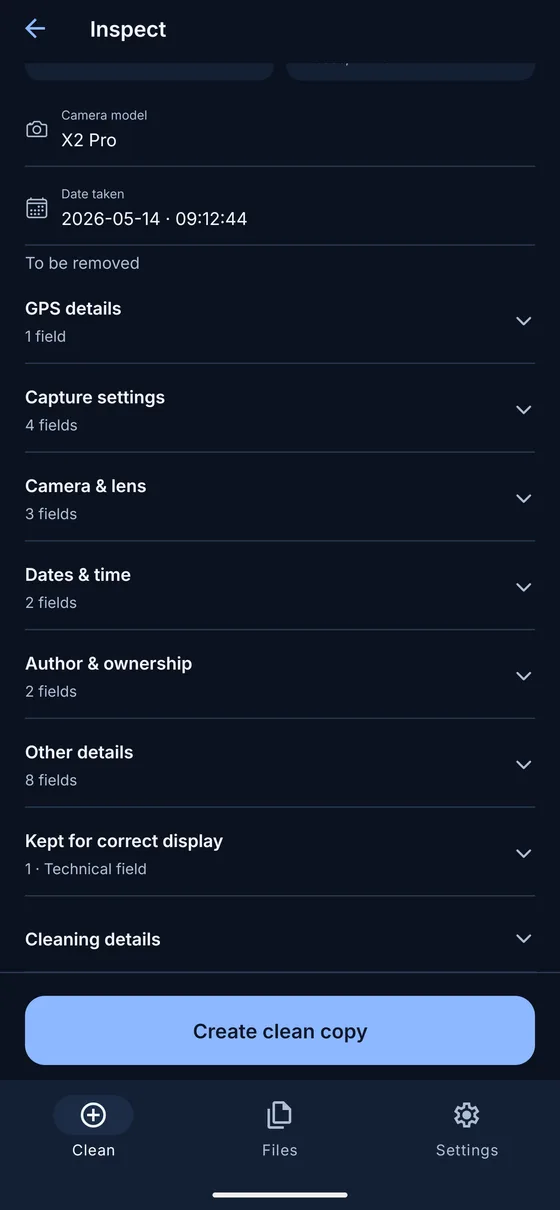
Inspection does not change the original. MetaQuiet processes files on the device, with no account or uploads. Photos must be no larger than 50 MB; RAW and BigTIFF are rejected, and HEIC support is for still images only.
If you choose to clean afterward, MetaQuiet creates a separate copy with a random file name and rescans it. Supported descriptive metadata is removed, while the picture and a minimal technical EXIF record for display orientation remain. For the built-in location controls, see the guide to removing location from a photo on iPhone.
Why a received photo may have no camera fields
The copy you received may differ from the sender's original. Commonly documented messenger behavior explains why some photos arrive without camera or location fields.
- WhatsApp and Telegram re-encode photos sent as pictures and drop their EXIF. Photos sent as documents or files keep their original metadata.
- Signal removes image metadata by default.
- iMessage, AirDrop and email attachments generally send the file as it is, including metadata. A sender may remove location or clean the file before sending.
- Instagram, Facebook and X strip metadata from the published copy but receive the original upload.
This behavior can change. Inspect the received copy to check what it carries. Missing camera fields do not establish how a photo was made or prove that all metadata is absent.
Common questions
Does the Photos info panel show all EXIF data?
No. It shows a summary of available information, including camera, lens and exposure details. It is not a complete list of every field or metadata block.
Can I inspect a photo in MetaQuiet without removing anything?
Yes. Select the photo and read the inspection result without starting cleaning. The original stays unchanged.
Why does a WhatsApp photo have no camera information?
Photos sent as pictures commonly lose EXIF when WhatsApp re-encodes them. Sending the photo as a document commonly preserves its original metadata, but inspect the received file because behavior can change.
Does a photo without a location field reveal nothing about where it was taken?
No. The picture may still show recognizable places, signs or addresses. Metadata inspection does not assess or redact those visible details.
MetaQuiet is on the App Store for iPhone and iPad and on Google Play for Android.
Get MetaQuietThis guide in other languages: Deutsch, Español, Français, Italiano, Português (Brasil), Türkçe, 日本語, 한국어