
Remove stored GPS from a copy
- Save an original export of the photo locally if it is currently in a photo or cloud service.
- In MetaQuiet, choose Browse Files and select the saved photo.
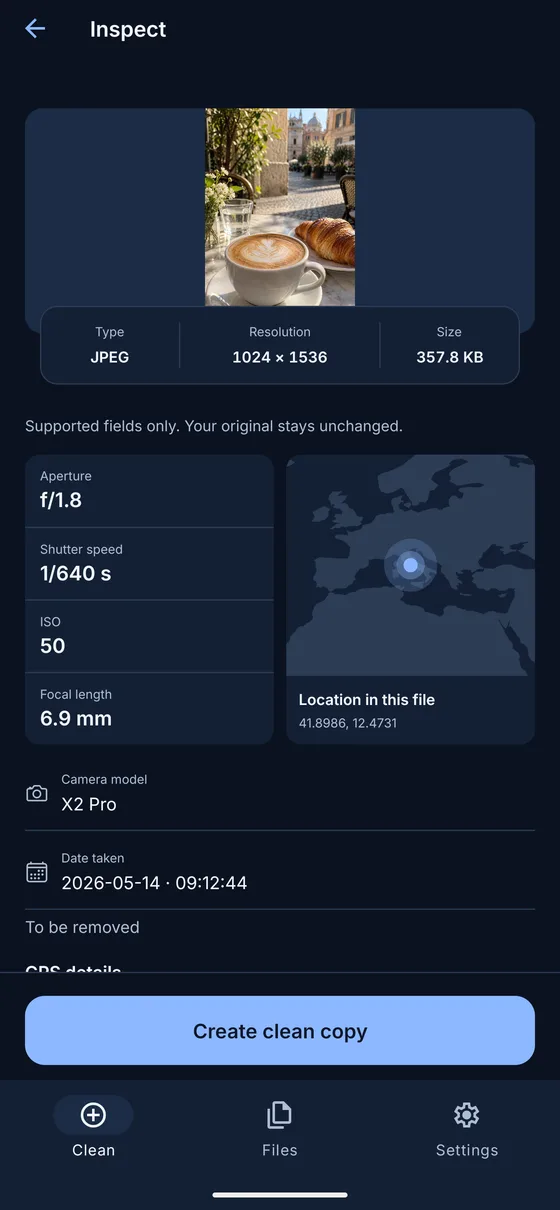
- Review the supported metadata report. Android hides the stored location of camera photos from MetaQuiet in both pickers.
- Choose Create clean copy. Supported location metadata and other supported descriptive fields are removed together.
- Save the result and share the clean copy. It contains no stored location whichever picker you used.
You do not need to open a detailed map to remove location data. Inspection and cleaning take place on the phone. The clean copy is checked again for supported metadata before MetaQuiet presents it as ready.
Why neither picker shows camera photo locations on Android
Android hides the stored location of camera photos from apps without media location access in both Photos & videos and Browse Files. MetaQuiet deliberately does not request that access, so it cannot show the location of these photos.
This also applies in Browse Files under Recent, Images and Internal storage > DCIM > Camera. The clean copy contains no location either way; the original on your phone may still hold it.
No visible GPS in a picker-supplied copy is not proof that the original photo has no location metadata.
Read the location result correctly
The location card uses coordinates read from the file. Other readable GPS fields may describe altitude, GPS time or camera direction. Their presence depends on the photo. Stored coordinates are a record in the file, not confirmation of your current location or proof that the record is accurate.
The initial overview map works offline without sending coordinates to a provider. If you choose to open a detailed Apple Maps or Google Maps view, that provider receives the viewed location or area. Your photo is not uploaded for the map.
Location clues can remain in the picture
Removing GPS does not change image pixels. A house number, street sign, distinctive building or delivery label stays visible. Look at the photograph as a recipient would, including its background, before deciding that it reveals only what you intend.
MetaQuiet also keeps technical information needed for display, such as supported orientation and color data. It does not let you replace coordinates with a different location or selectively edit GPS fields. The cleaning action removes supported descriptive metadata as a group.
Check the version you actually send
Supported photo formats include JPEG, PNG, WebP, GIF, still HEIC/HEIF and AVIF, and classic TIFF, with different metadata coverage for each. The limit is 50 MB per file. RAW, AVIF image sequences, BigTIFF and unsupported variants cannot be cleaned by changing the filename extension.
A receiving photo library or app may add fresh metadata when saving. Android hides camera photo locations in Browse Files too, so reopening a photo there cannot confirm that its stored location is absent. A blank preview does not establish that every possible private detail has been removed.
Keep the original for your own use and distinguish it from the clean copy. Save the output before deleting temporary copies in Settings > Storage. Clearing temporary storage does not remove GPS from your original or delete copies held elsewhere.
Common questions
Can I remove only GPS and keep all other descriptive fields?
MetaQuiet does not offer selective metadata editing. Cleaning removes the supported descriptive fields together.
Does the location card track where I am now?
No. It displays readable coordinates stored in the selected file.
Why does the original still show its location?
Cleaning creates a separate copy. The original is never overwritten.
MetaQuiet is on the App Store for iPhone and iPad and on Google Play for Android.
Get MetaQuietThis guide in other languages: Deutsch, Español, Français, Italiano, Português (Brasil), Türkçe, 日本語, 한국어